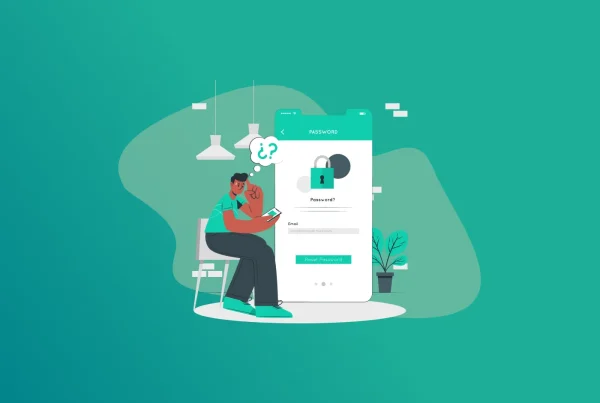
Having forgotten a password is not a good experience, and most of the time it occurs at a moment when one really needs it. But no worries, in case of forgotten Figma password, the whole process of account recovery will be fairly quick and easy.
Figma is one of the most widely used design and collaboration software solutions that are available nowadays. Designers, developers, marketers, and companies are using it to work on different kinds of projects in the online environment. As all files are stored on the cloud, forgetting about your account can affect your productivity and work progress.
It is good that Figma offers several ways to recover an account in case of forgotten passwords, inability to find the recovery email, and other login problems.
This article will show you how to reset your Figma password, solve some of the recovery problems, and secure your account in the future. Also, you will learn more about how certain tools, for example, FastestPass, can help you manage your passwords better.
What Is Figma?
Figma is an online design tool that lets you create interfaces, wireframes, prototypes, and other types of digital designs. Figma operates differently from other design tools because it is entirely web-based and supports real-time collaboration. Since everything is stored online, your account is the key to all your designs and projects. This is why accessing your account is crucial. In case you have lost your password, regaining access to your account is essential.
Why You May Need a Figma Password Reset
Several factors can lead to users being required to reset their Figma password. Perhaps the most obvious one is when you forget your login information. Since we have so many passwords for different services, it is not difficult to get lost among them.
Often enough, users who have not used Figma for several months find themselves unable to recall their password. Another possible factor is that you suspect any malicious activity from third parties. Or perhaps it is simply because your password is old and weak. Whatever the case, changing your password will be the quickest way back into your account.
How to Reset Your Figma Password
But if you log in using email and password, then the process is rather simple. Firstly, access the login page of Figma. Press the “Forgot Password” or “Password Reset” button. Then input the email associated with your account. Figma will send you the password reset email on this email id. Access the email and follow the link for password reset. After that, enter the new password of your choice. Once done, go back to the login page and log in with your updated credentials. Usually, this whole procedure doesn’t take more than a few minutes.
What to Do If You Don’t Receive the Reset Email
Among the most frequent problems that people encounter is the lack of receipt of the password reset email. In order to rule out anything wrong, one should check the spam or junk mail folder. Many emails are filtered by providers when it comes to password reset emails. Also, one should check the correctness of the entered email address. The smallest error might prevent the delivery of the email. At times, the delivery of emails is delayed. One should wait for several minutes and submit another request. If no success is achieved, one should consider contacting Figma support.
When the Password Reset Link Doesn’t Work
Sometimes the user gets the email, but finds out that the reset link is not working properly. That may be because the link has expired or there have been more than one request for reset.
It is always recommended to use the latest password reset email received by you. If the link is still not working, try accessing the link through a different web browser.
In some cases, clearing the browser cache and cookies might help. Else, requesting another password reset email should be your last resort.
Logging In Through Google
Many people use the sign-in process with Google to log into their Figma accounts. In such cases, changing the Figma password will not work because your login details are controlled by Google. Therefore, you have to reset or change your Google password first. After you have recovered or changed your password for the Google account, you will be able to log in normally to your Figma account. This often happens when people forget that they opted for Google Sign-In initially.
Understanding Single Sign-On (SSO)
Most companies make use of a technique called Single Sign On, popularly referred to as SSO. In SSO, your company and not Figma controls your login credentials. Therefore, if your company utilizes SSO, any password reset will be done using your company’s identity provider. This means that the IT team in your company will have to help you out.
How to Create a Strong Password
Following the recovery of your account, it is advisable that you secure your password. This can be achieved by creating a password that is not easy to break. The password should be long enough and composed of a combination of upper case letters, lower case letters, numbers, and special characters. Personal details such as one’s name and birthday should not be used. Passwords should also never be reused on other accounts.
Why Password Managers Are Useful
Having many passwords may be hard to manage. That is where the importance of password managers lies. Password managers keep your information in one place and can assist you in creating strong passwords.
You will not need to memorize each and every login, since you will have to recall only one password. FastestPass is an example of password management services, which may be helpful in organizing passwords of users.
The risk of forgetting your passwords will also decrease when using password managers, which will enable more convenience while accessing accounts through various devices. Furthermore, using password managers may contribute to improved security practices.
Protecting Your Figma Account After Recovery
Password resetting is just one aspect. There are still other things you need to do in order to keep your account safe. Consider enabling two-factor authentication if the feature is provided by your login option. This will provide extra protection. Keep monitoring your account’s activities to detect any suspicious login attempts. Do not give out your passwords to anyone. Exercise caution whenever logging into your account via a public computer or laptop. If you usually connect to the internet through Wi-Fi hotspots, then you need to ensure that your connection is secure.
Common Figma Password Reset Mistakes
The majority of users unintentionally make errors when recovering their accounts. An error may include making multiple password resets and subsequently choosing an older link from their email.
There is also a chance of inputting an incorrect email address while trying to recover the password. Users tend to forget that they signed up using Google Sign-In and waste time on the attempt to reset a password that is not linked with Figma. Weak passwords are chosen by users straight after recovery.
Conclusion
Password resetting on Figma is an easy procedure. No matter whether you have forgotten your password, you have no access to your email anymore, or you have any login problems, there are various ways to recover your account and continue working.
The point is that you should know about the way your account was initially registered. If you use email and password for logging in, you can perform password recovery with Figma. In case of Google Sign-In and SSO users, the solution will be different.
After gaining access to your account, you may think of strengthening your security measures. You may generate a new password for it and activate other features aimed at ensuring better protection of your account. Also, you can create your FastestPass password and store your credentials. Thus, by taking some simple actions, you will recover your account and avoid possible troubles.
Generate passkeys, store them in vaults, and safeguard sensitive data! Receive the latest updates, trending posts, new package deals,and more from FastestPass via our email newsletter.
By subscribing to FastestPass, you agree to receive the latest cybersecurity news, tips, product updates, and admin resources. You also agree to FastestPass' Privacy Policy.
Secure and Create Stronger Passwords Now!
Subscribe to Our Newsletter